Handrail
An accessibility panel your visitors can use to make your site easier to read, and a checker that tells your editors who can fix each problem. It doesn't pretend to fix your site for you.
For WordPress 6.5 and later, PHP 7.4 and later. Every feature is free, with no account and no license key.
Pick the panel that suits your site
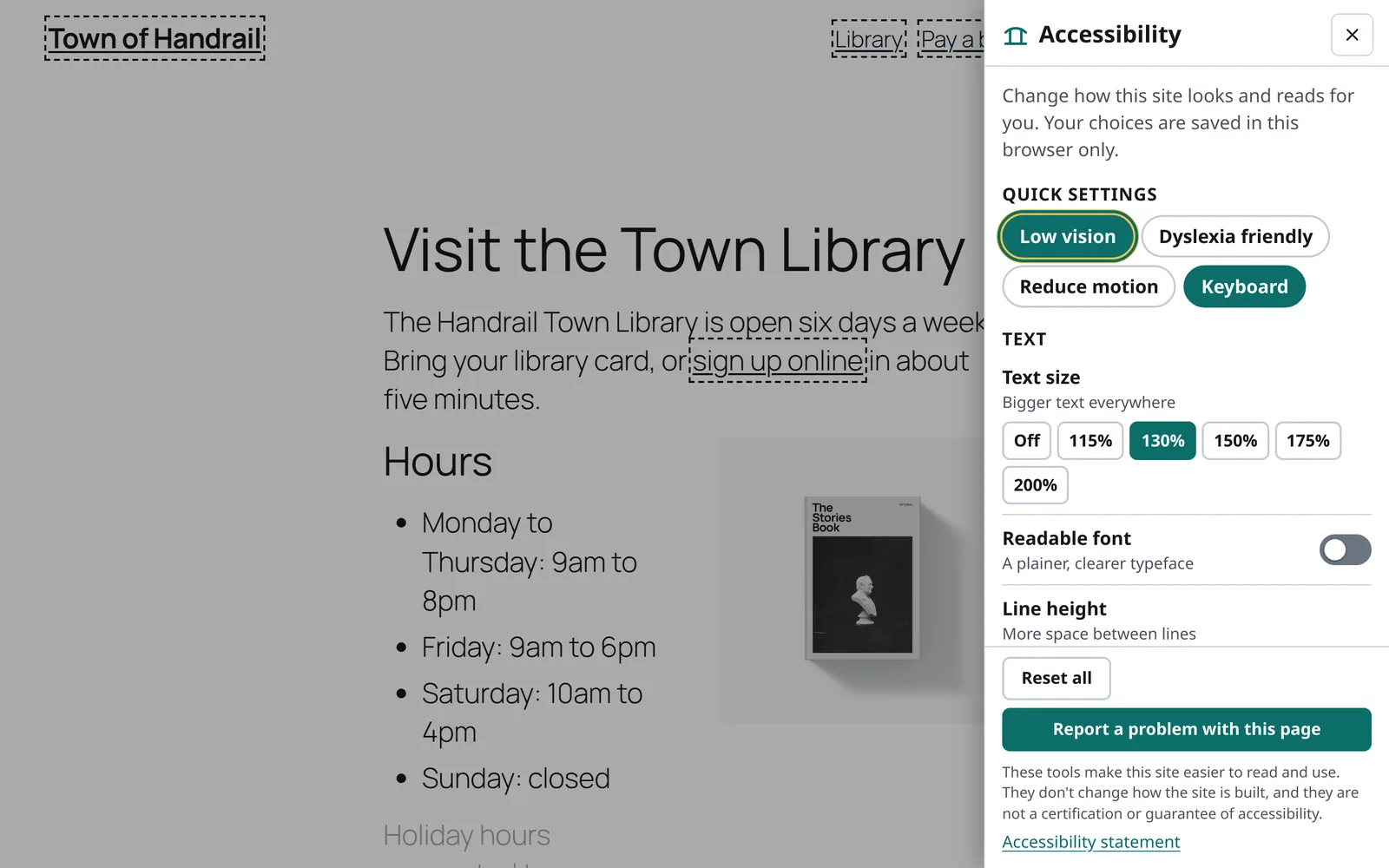
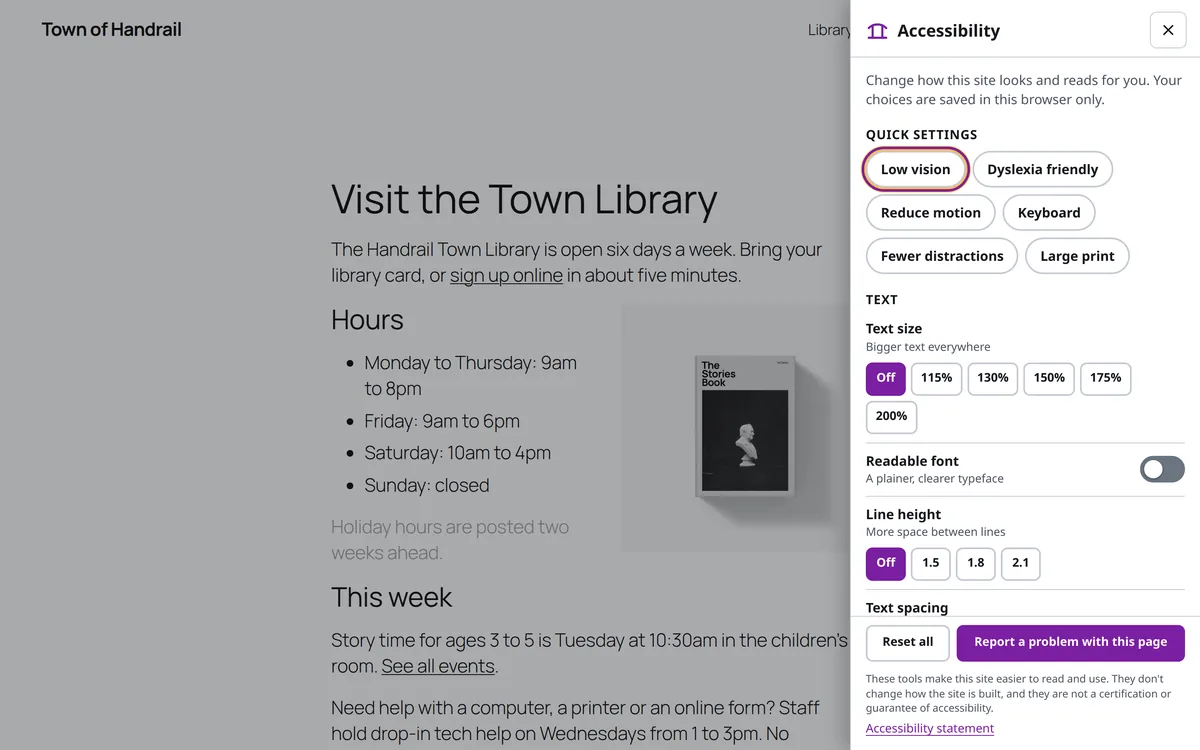
Every style has the same tools, works with a keyboard and a screen reader, and remembers each visitor's choices. Choose one under Handrail › Settings › Look and placement.
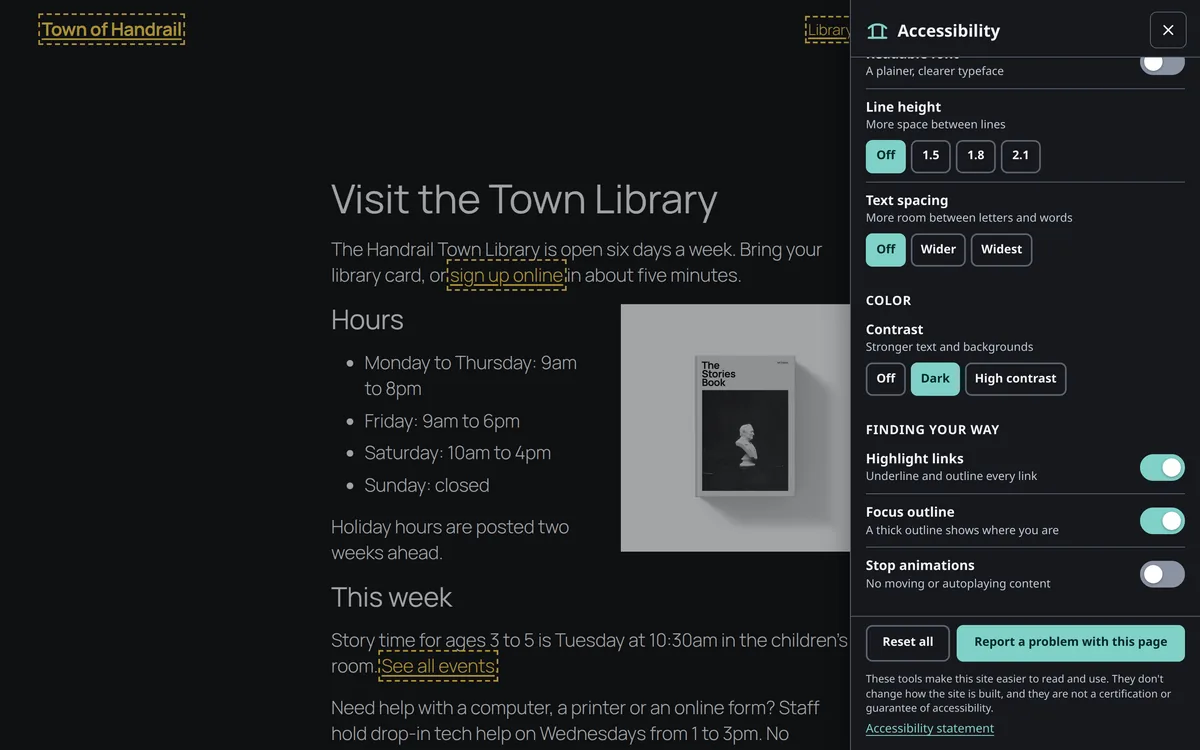
The default. Each tool is one row with a switch or a short list of choices. It follows the dark view too.
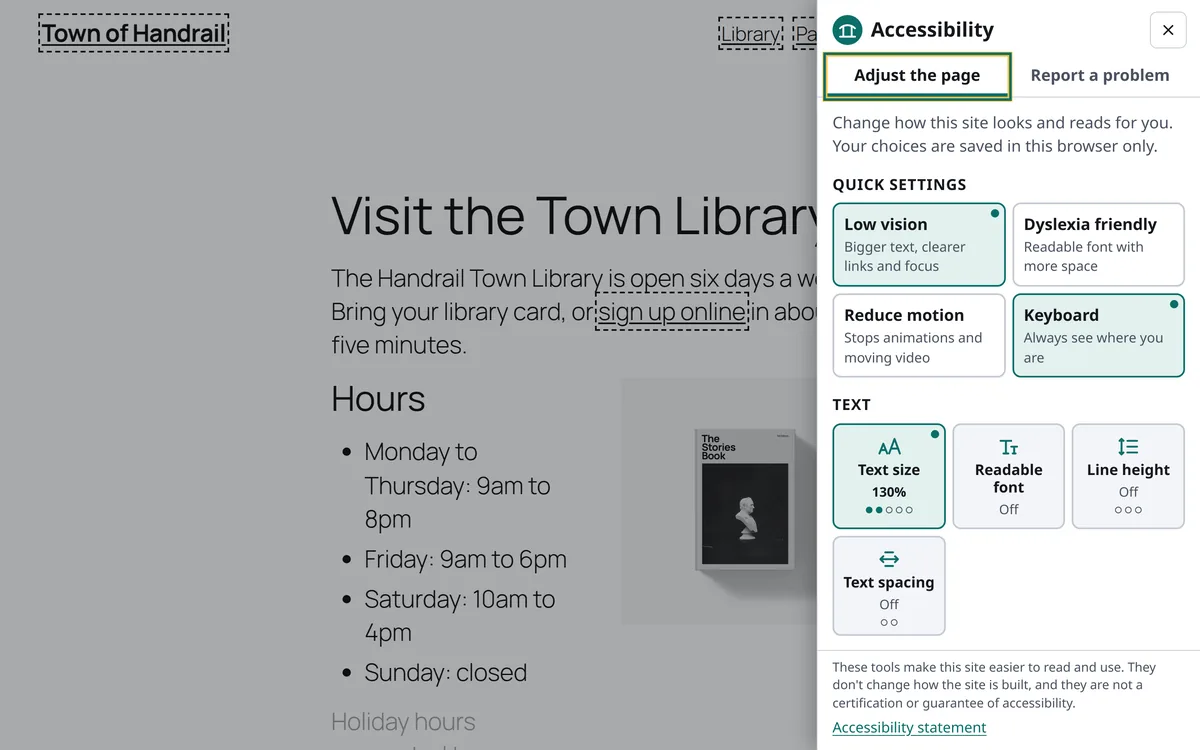
Big tiles that step to their next setting with each click.
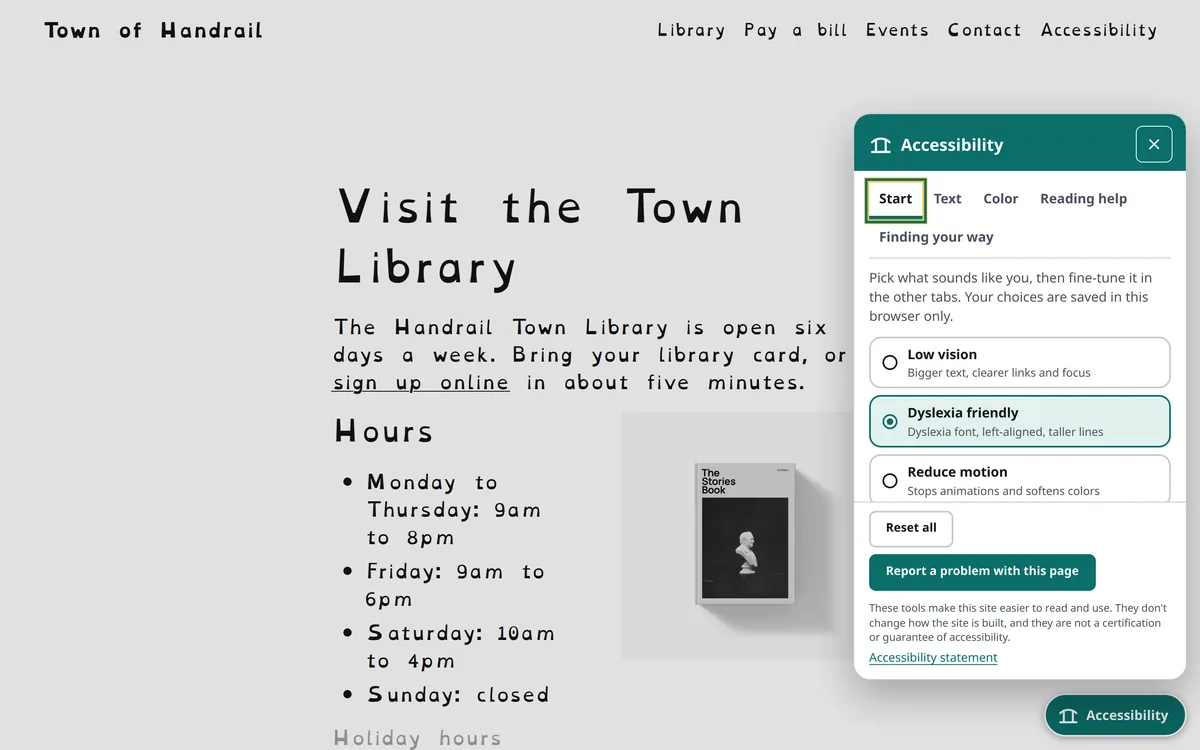
A compact card beside the button. Visitors start from a quick setting, then fine-tune one group at a time.
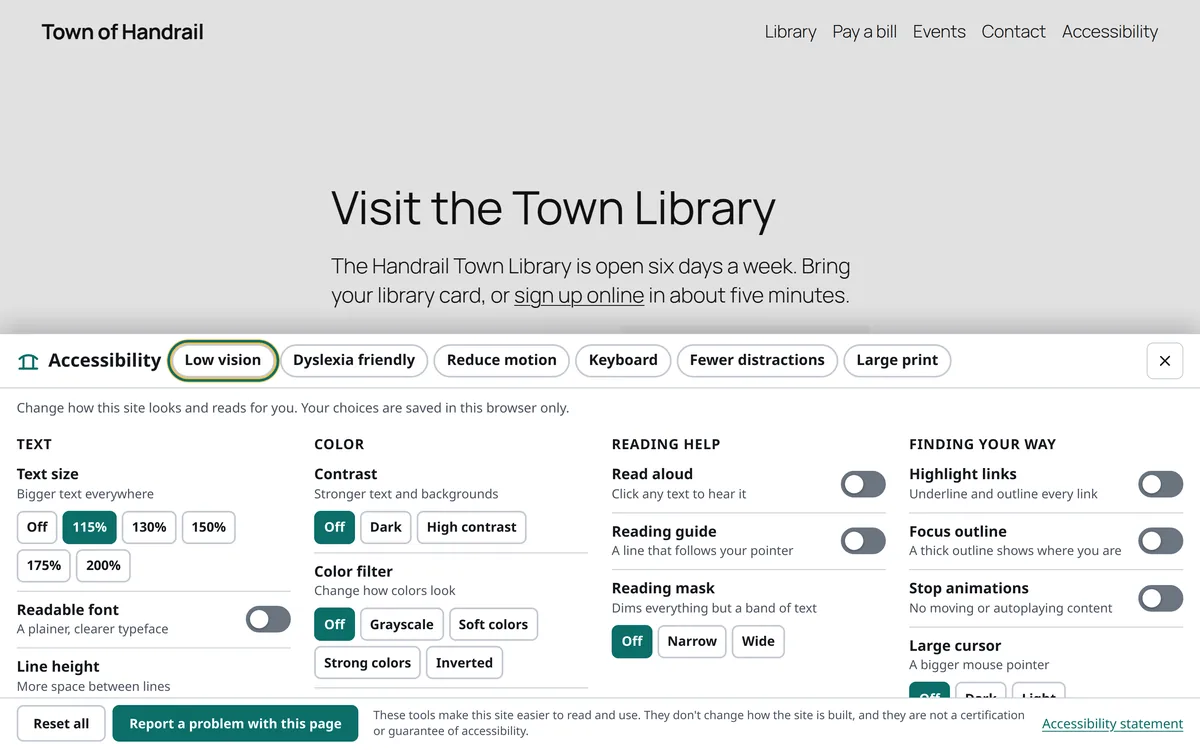
A bar along the bottom with every tool in view, so the page stays visible while visitors adjust it.
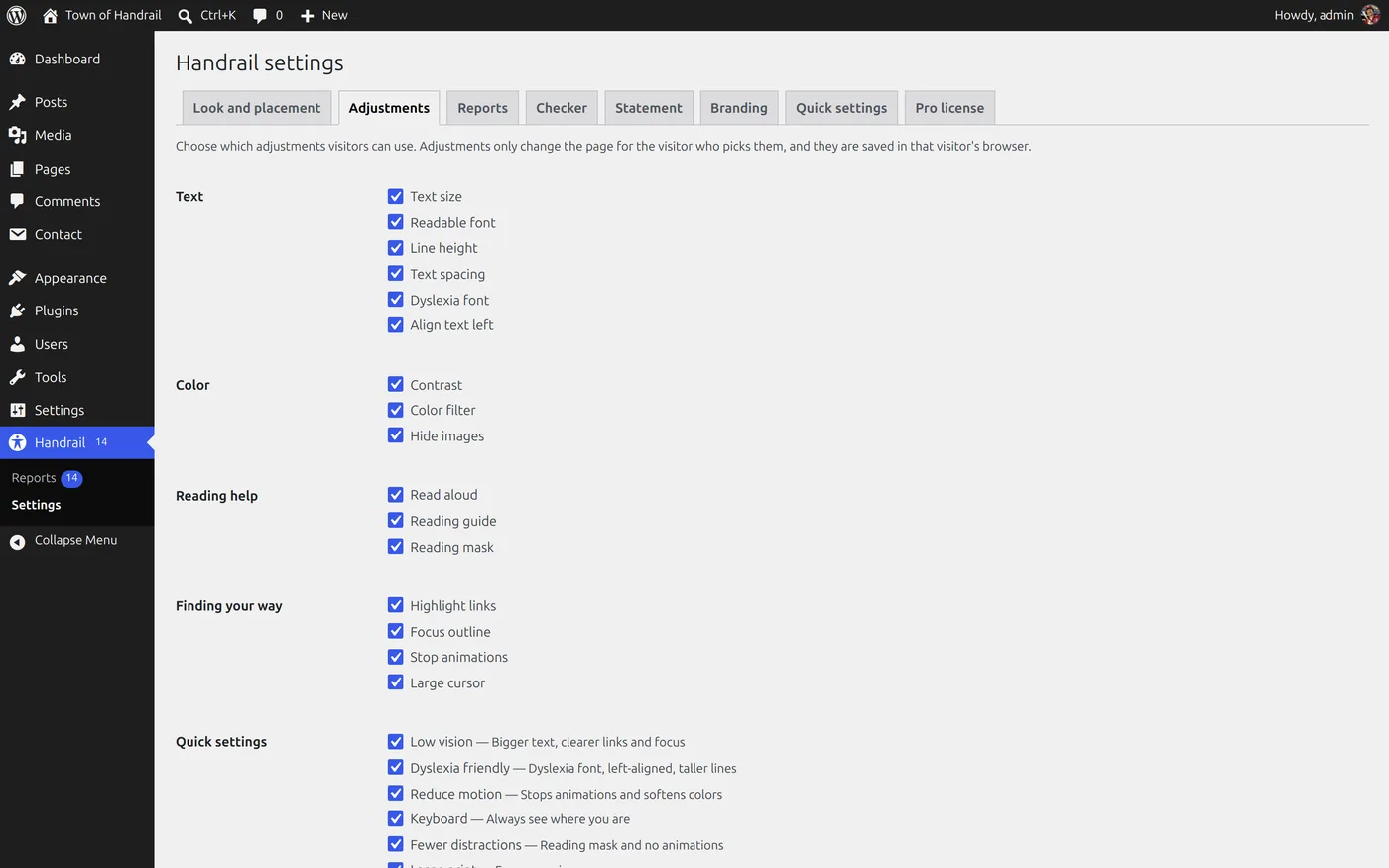
Sixteen adjustments, and you choose which appear
Turn any tool off in the settings and it disappears from the panel. A visitor's choices are saved in their browser and applied before the page draws, on every page they visit.
| Tool | What it does |
|---|---|
| Text size | Bigger text everywhere, from 115% to 200%. |
| Readable font | A plainer, clearer typeface. |
| Line height | More space between lines. |
| Text spacing | More room between letters and words. |
| Contrast | A dark view, or high contrast. |
| Highlight links | Underlines and outlines every link. |
| Focus outline | A thick outline shows where you are when you use a keyboard. |
| Stop animations | No moving or autoplaying content. |
| Read aloud | Click any text to hear it, or read the whole page. |
| Reading guide | A line that follows the pointer. |
| Reading mask | Dims everything except a band of text, narrow or wide. |
| Dyslexia font | OpenDyslexic, a typeface with heavier letter bottoms. |
| Align text left | No centered or justified paragraphs. |
| Color filter | Grayscale, soft colors, strong colors or inverted. |
| Hide images | Only text and controls. |
| Large cursor | A bigger mouse pointer, dark or light. |
Quick settings
One click turns on a group of tools that go together. Visitors can fine-tune from there.
- Low vision: bigger text, clearer links and focus.
- Dyslexia friendly: the dyslexia font, left-aligned text and taller lines.
- Reduce motion: stops animations.
- Keyboard: always see where you are.
- Fewer distractions: the reading mask and no animations.
- Your own: for example "Large print" for a seniors program.
What the adjustments look like
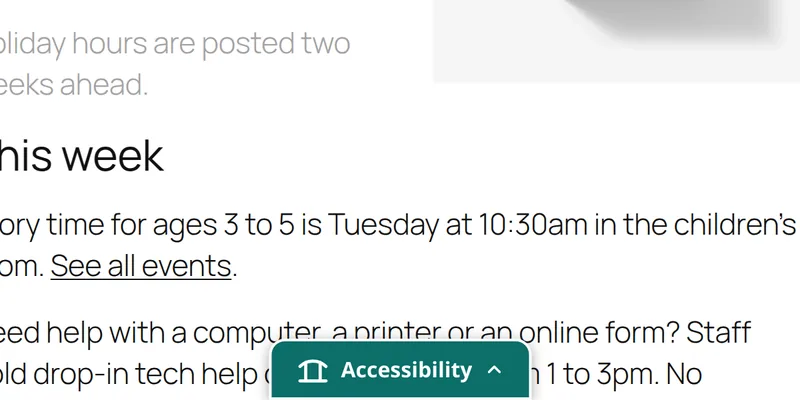
The same library page as above, as four different visitors might set it.
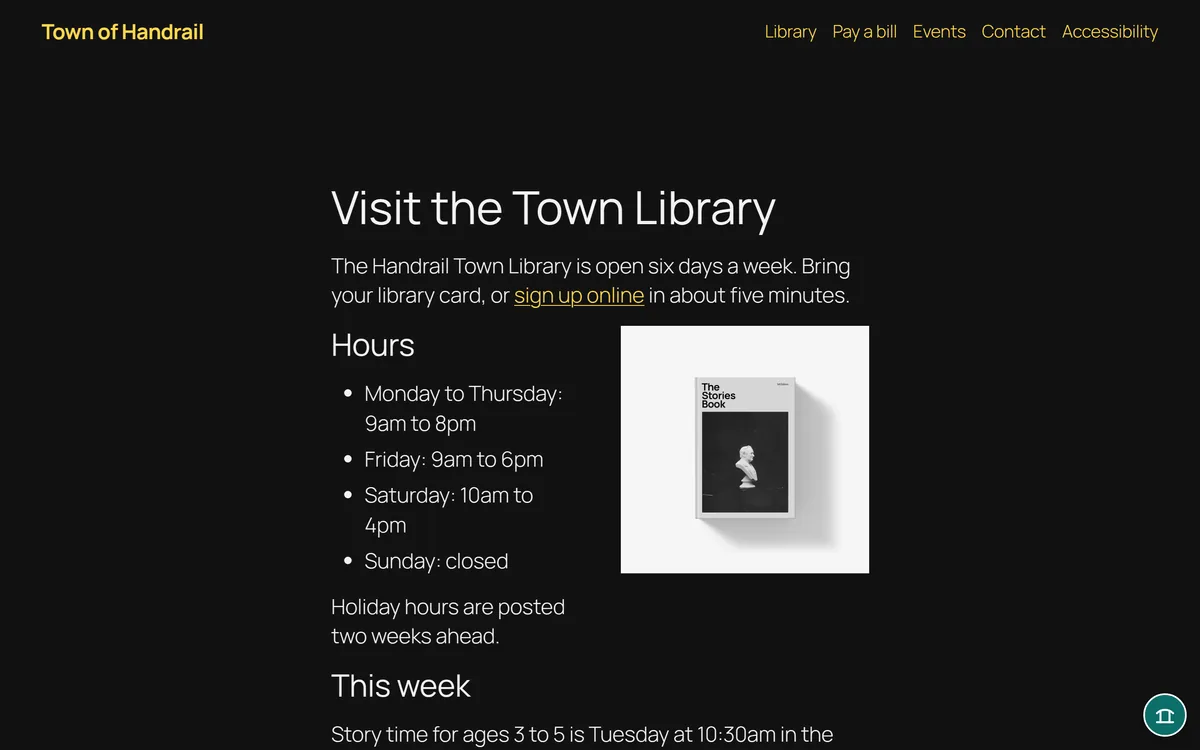
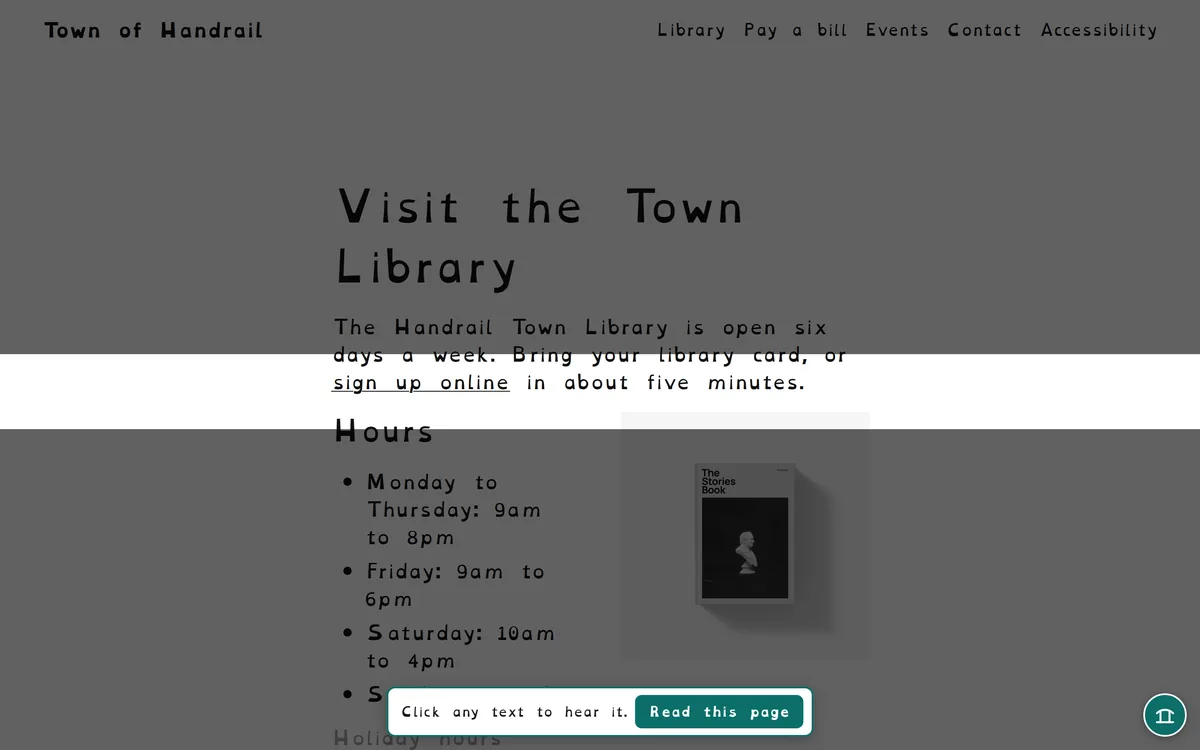
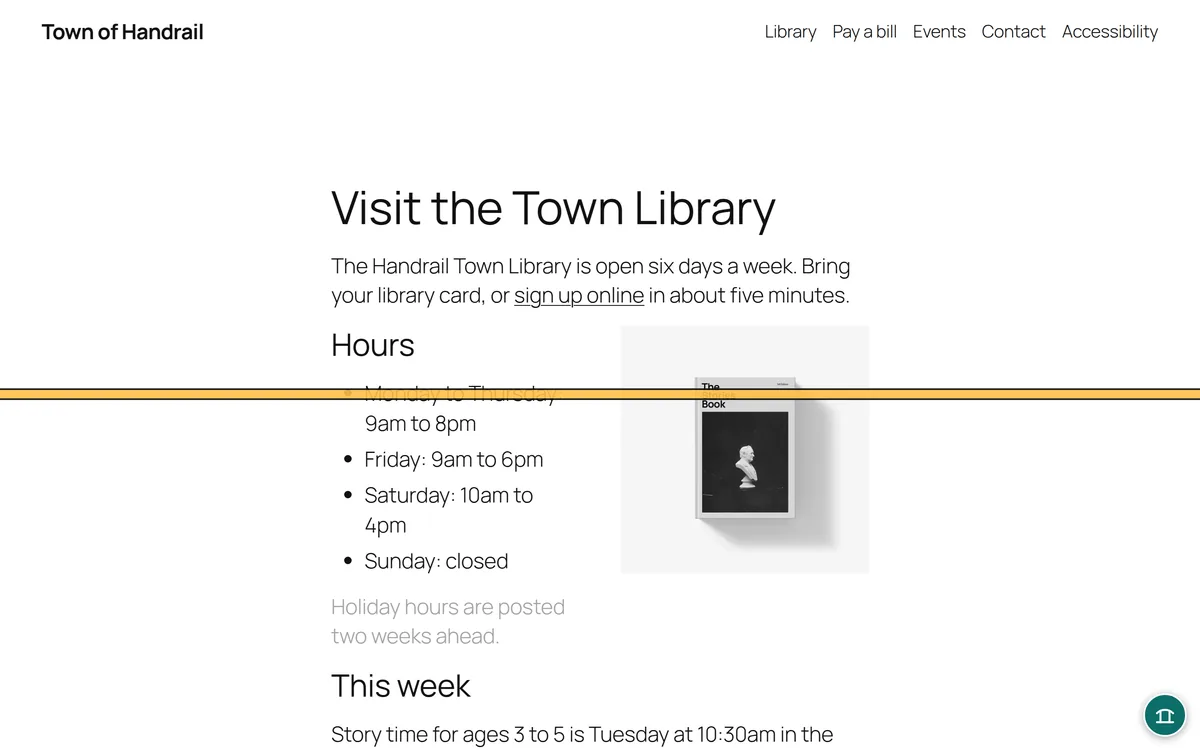
The line follows the pointer down the page.
Put the button where it won't get in the way
Four button shapes, any corner, and a distance from the edges you can change if it covers a chat widget or a cookie banner.
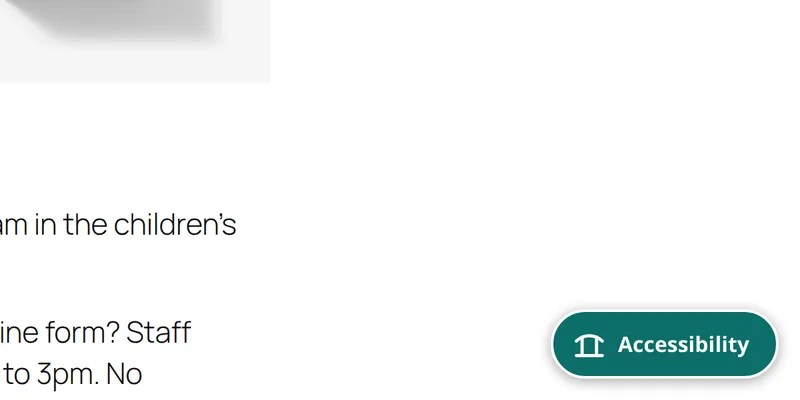
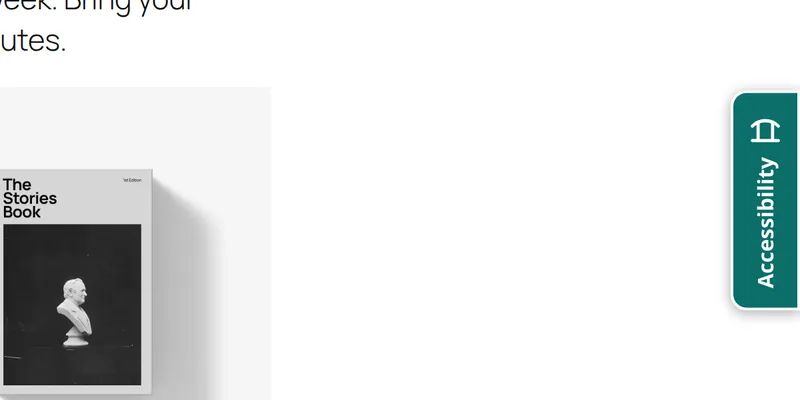
Or skip the floating button and open Handrail from a link in your menu, your
footer, the Social Icons block, a widget, the
Handrail block or the [handrail] shortcode. You can also hide the
floating button on phones only.
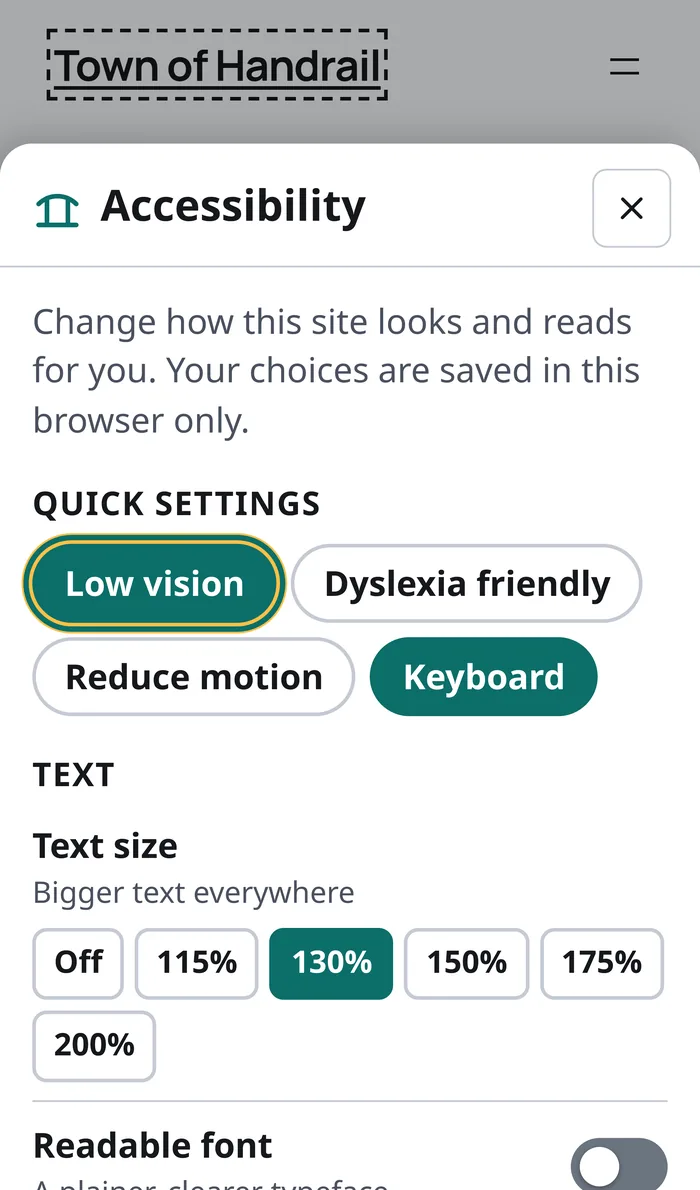
On a phone
Every style opens as a sheet from the bottom of the screen, with large buttons and the title and close button pinned at the top while the rest scrolls.
Quick settings come first, so a visitor on a small screen can get what they need with one tap.
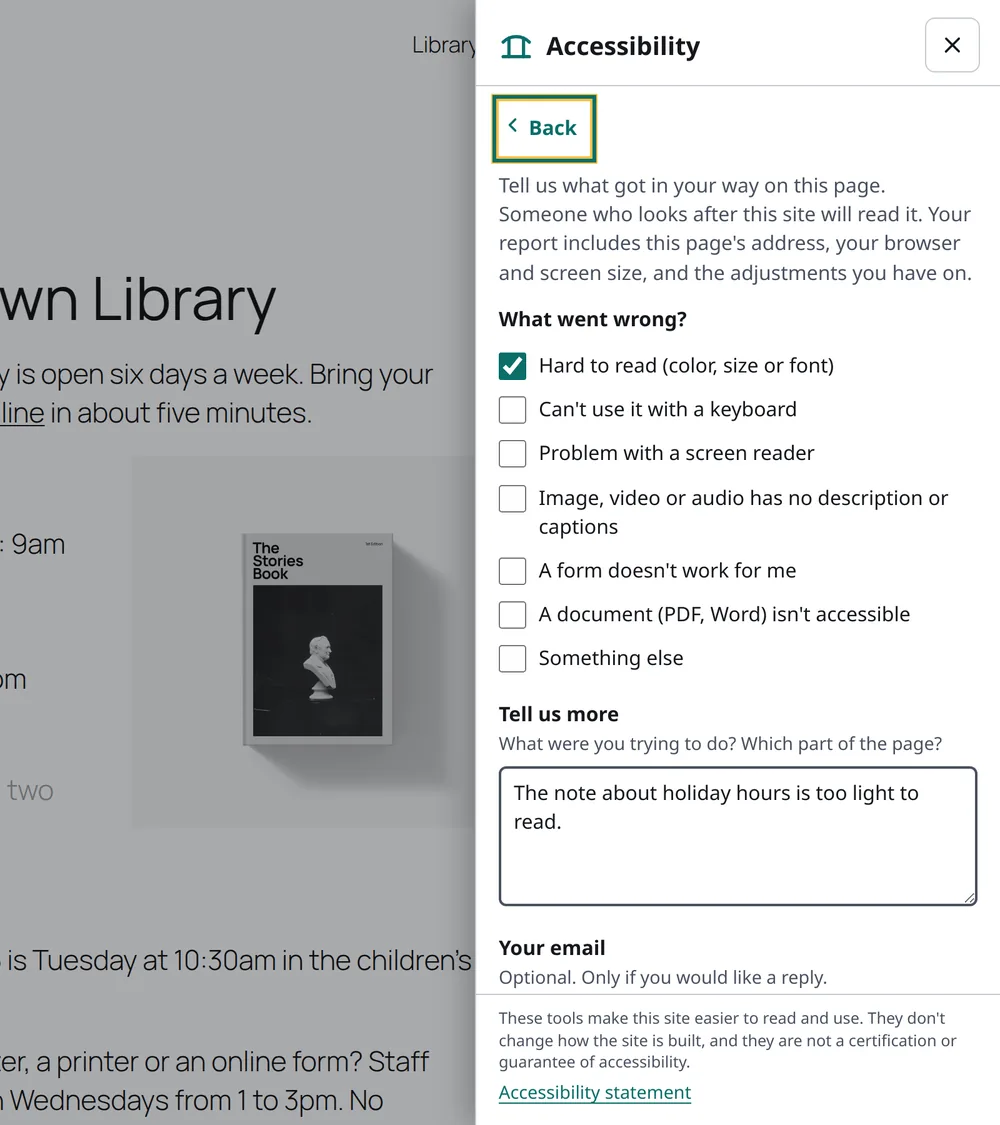
Hear about barriers from the people who hit them
An optional form in the panel, off until you turn it on. Visitors tick what went wrong, tell you what they were trying to do, and leave an email address only if they want a reply.
Each report includes the page, the visitor's screen size and browser, and the adjustments they had on, so you can see the page the way they did.
Spam protection is built in. Add Cloudflare Turnstile, reCAPTCHA or hCaptcha if you want, and Handrail can reuse the keys you already set up in Contact Form 7, WPForms, Gravity Forms or Forminator.
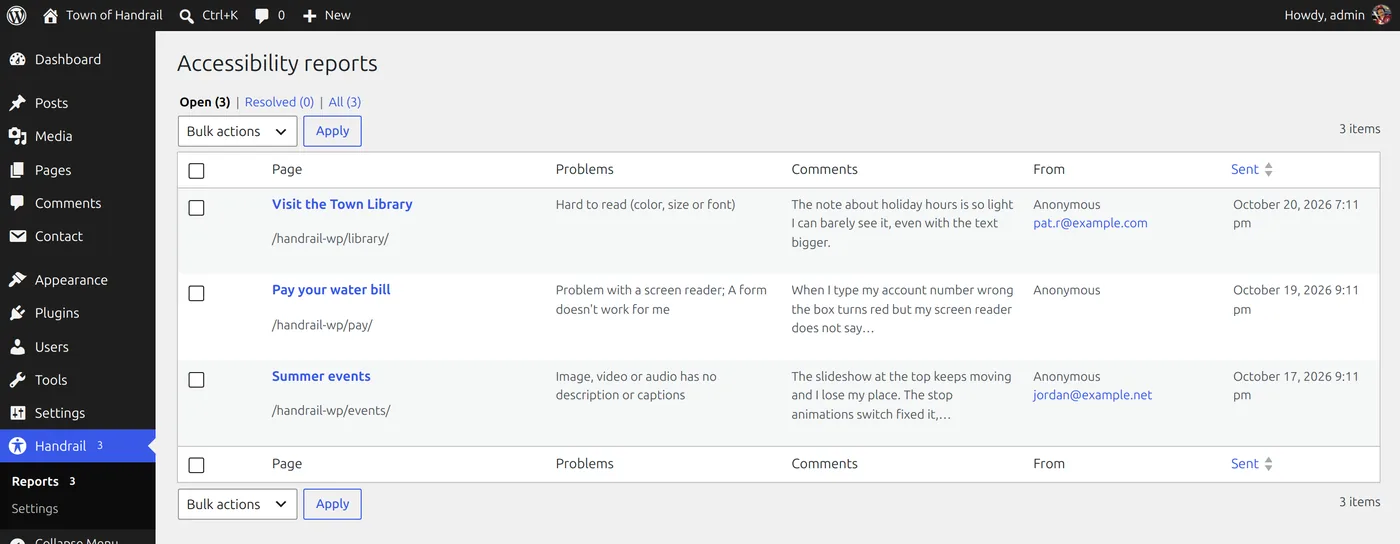
Check this page, and see who can fix it
People who can edit your site get an automated check of the page they are looking at. Visitors never see it.
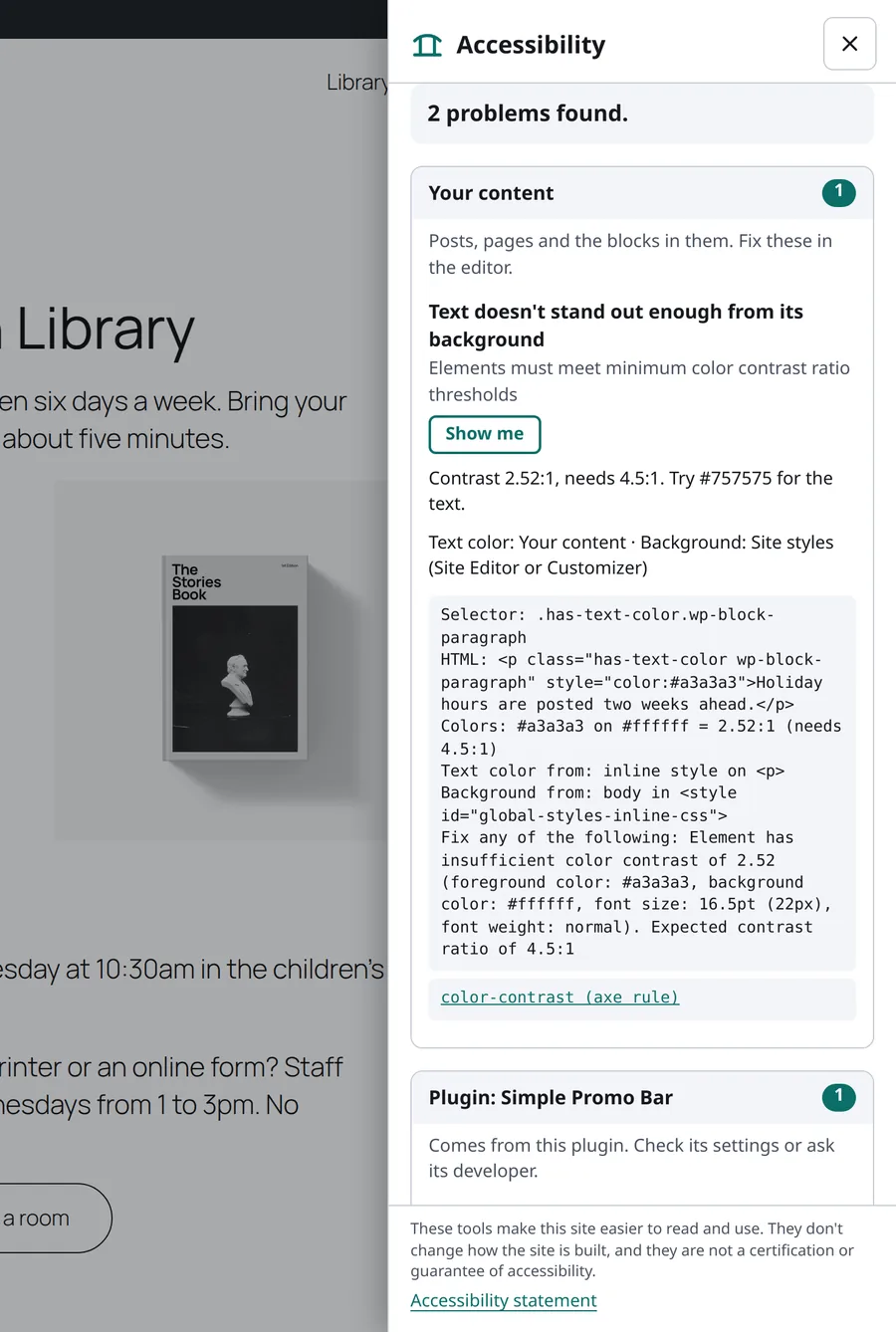
Grouped by who can fix it
Problems are sorted into your content, your site settings, your theme, or a named plugin, traced from the stylesheet that set the color. An editor who can't change the theme still knows which problems are theirs.
Color problems come with the measured contrast and a color that would pass. People you choose also see the technical details: the selector, the HTML and where each color came from.
The check covers WCAG 2.1 AA, with WCAG 2.2 checks as an option, using axe-core. Automated checks find some problems, not all, and the results say so.
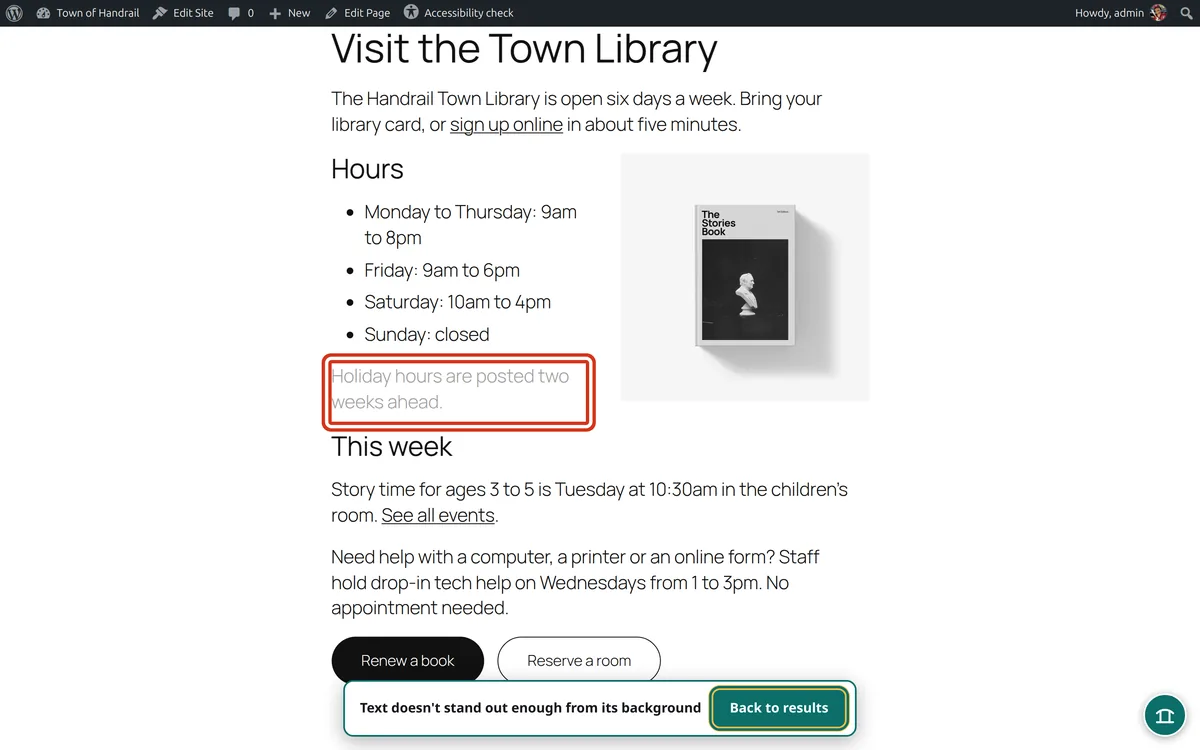
"Show me" points at it
One click hides the panel, scrolls to the problem and draws a box around it. Another takes you back to the results.
Open it from the Accessibility check link in the admin bar on any page of your site.
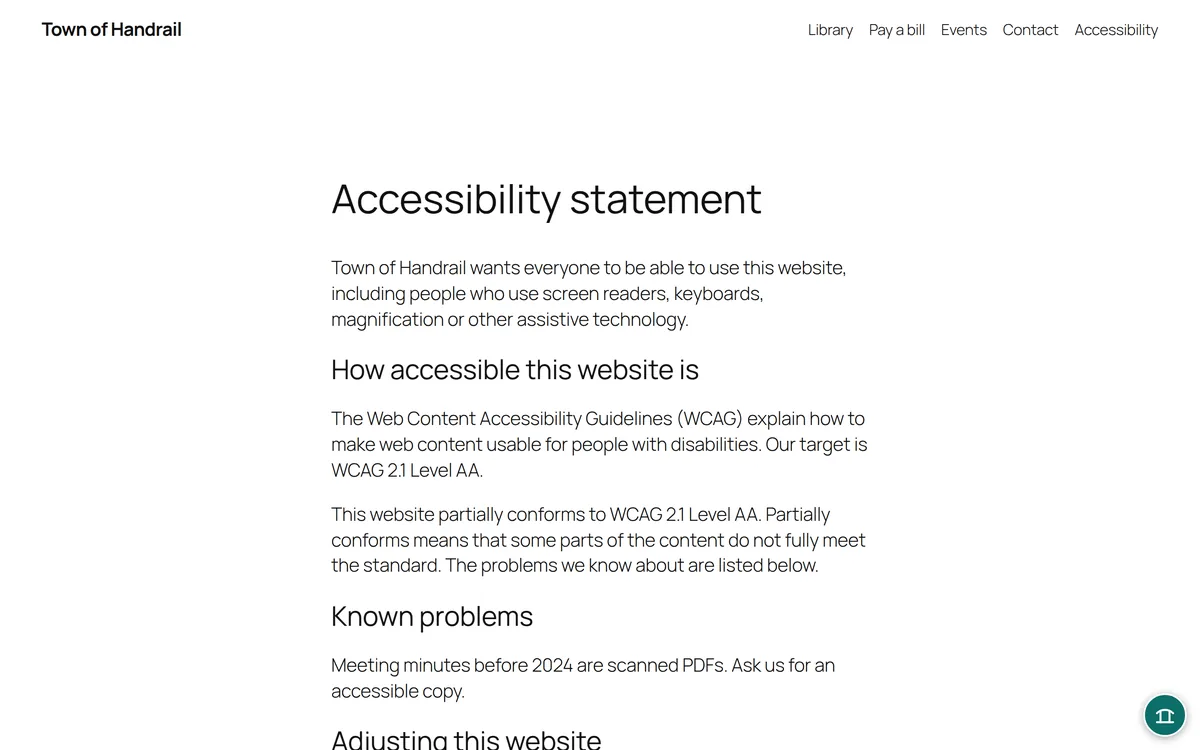
A statement page from a few settings
Fill in your organization's name, how to reach you, the standard you aim for, how far you have got, what you know is still a problem and how quickly you reply. Handrail writes the page and links to it from the panel.
The statement is a block on an ordinary WordPress page, so it updates when you change a setting and you can add your own words around it.
Everything is on one settings screen
Choose the panel style, the button and where it goes, which tools and quick settings appear, reports, the checker, the statement, your branding and your own quick settings.
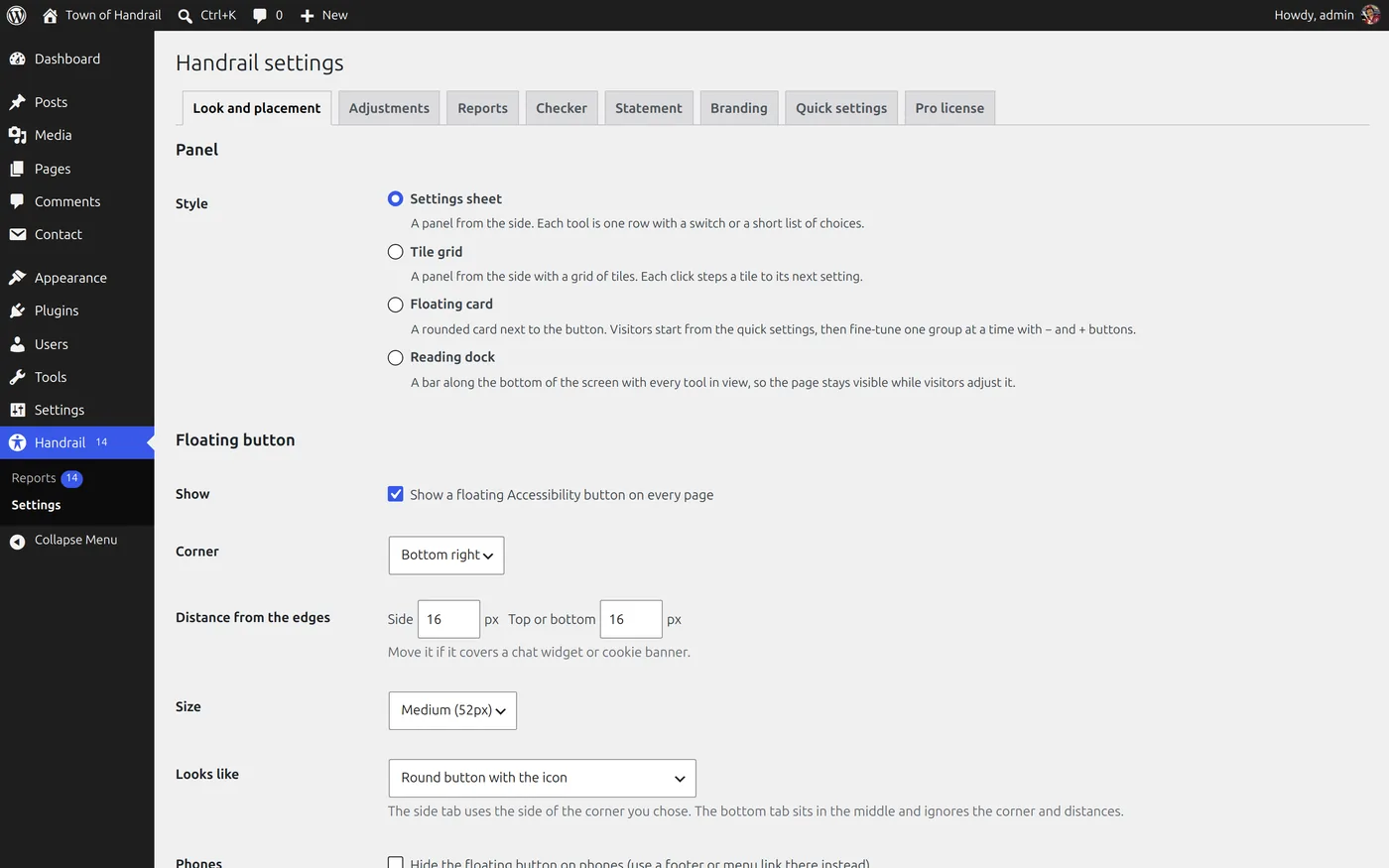
Handrail doesn't rewrite your page or promise compliance
Overlays claim to fix a site automatically. Handrail doesn't. It changes how the page looks for the one visitor who asked, it loads almost nothing until someone opens it, and it tells you plainly that it isn't a certification or a guarantee.
Real fixes happen in your content, theme and plugins. Handrail helps you find where. If you want someone to do the fixing, that is what we do.
All of Handrail is free
Everything on this page is in one plugin, with no limits, no account and no license key.
Download the plugin (a zip file) and upload it in WordPress under Plugins › Add New › Upload Plugin, then open Handrail › Settings. The floating button is on as soon as you activate it. Handrail will also be in the WordPress.org plugin directory once it's approved.
If it helps you, you can chip in.
In the plugin
- Four panel styles: settings sheet, tile grid, floating card and reading dock
- Sixteen adjustments, including read aloud and the reading guide and mask
- Five quick settings, plus your own
- Your accent color, panel title and button text
- Four button shapes, menu, footer and block placement
- Report a problem, with spam protection
- Check this page, grouped by who can fix it
- An accessibility statement page
Your colors and your own quick settings
Set the accent color, and Handrail checks that it reads clearly before it saves it. Rename the panel and the button. Add quick settings for the people who use your site, such as "Large print" for a seniors program or "Classroom" for a school.
Want the problems fixed?
Handrail shows you where your site falls short. Fixing it happens in your content, theme and plugins, and that is our work: we review WordPress sites against WCAG and fix what we find.
Questions
Does Handrail make my site accessible or compliant?
No, and it says so in the panel. Handrail helps people adjust a site to suit them and tell you what got in their way. It does not fix the site, and it is not a certification or guarantee of anything.
Real fixes happen in your content, theme and plugins. The checker shows you where to start, and if you want someone to do the fixing, that is what we do.
Will it slow my site down?
Visitors who never open the panel download one small script for the button, about 8 KB. The panel and the checker load only when someone opens them. A visitor who has saved settings also gets the small piece that applies them, and it runs before the page draws so the page doesn't flash.
What does it store about visitors?
A visitor's settings stay in their own browser. Nothing about them is sent to you or to us.
If you turn on reports, a report holds what the visitor wrote, the page address, their screen size, browser and the adjustments they had on, plus an email address only if they chose to give one. Reports stay in your WordPress database and are deleted after the number of days you set.
Will it work with my theme?
It works with block themes and classic themes. The button and panel are drawn in their own isolated layer, so your theme's styles can't break them and theirs can't leak into your page.
Is all of it really free?
Yes. Every tool, panel style and setting on this page is in the one plugin, with no account, no license key and no paid version.
We make our living fixing sites. If you want help with the problems the checker finds, ask us for a review.
Can I use it on client sites?
Yes, on as many as you like. Handrail is GPL software.